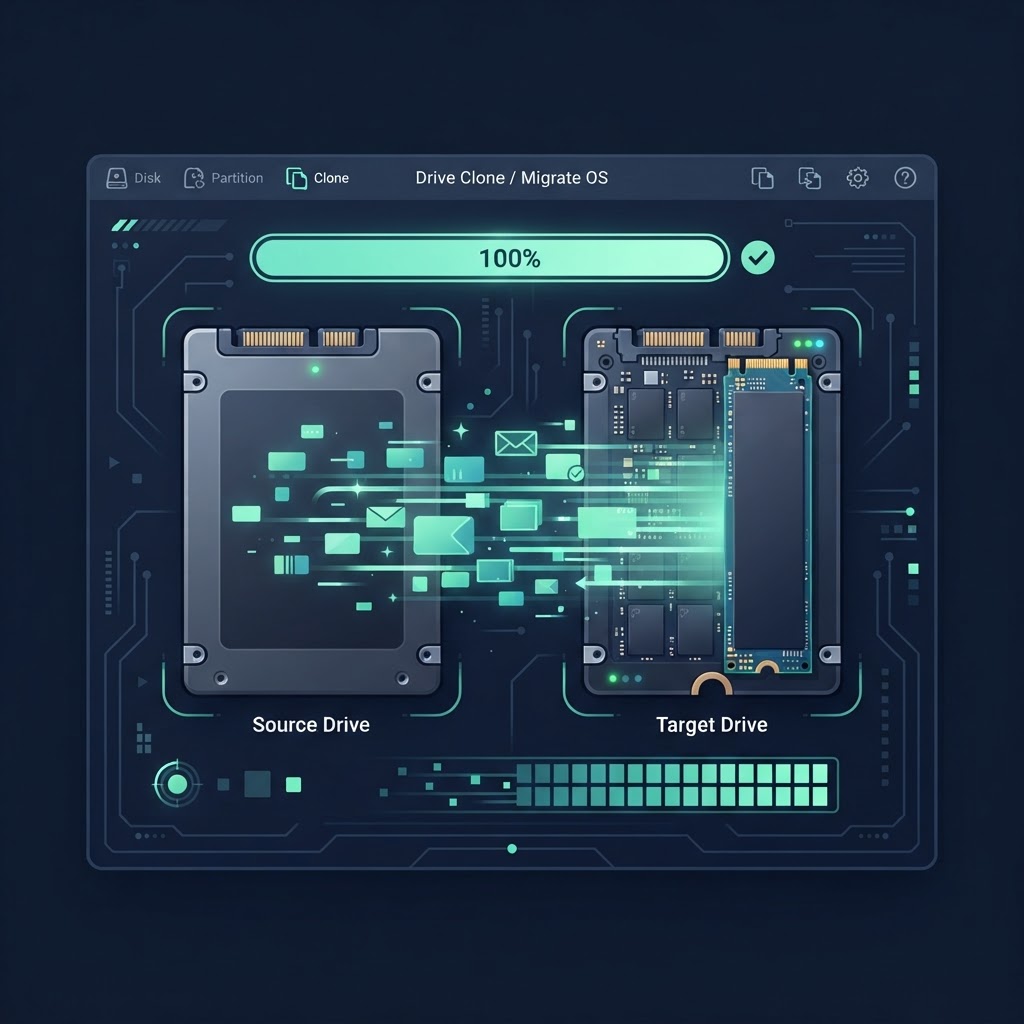
Clone a Drive on Windows with DiskGenius — OS Migration & Disk Cloning Guide
Migrate your Windows boot drive or clone a data disk to a new SSD or HDD using DiskGenius. Covers prerequisites, partition resizing, copy modes, hot migration, and booting from the new drive.
Clone a Drive on Windows with DiskGenius
Disk cloning copies everything — operating system, programs, files, and partition structure — from one drive to another. Whether you're upgrading to a larger SSD or replacing a failing disk, DiskGenius makes the process straightforward.
Prerequisites
Connect the target (new) drive to your Windows PC via SATA, NVMe slot, or USB adapter.
Ensure the target drive has enough capacity for your data. All existing data on the target drive will be overwritten.
Back up any important data on the target drive before you begin. Cloning erases it.
“Back up any important data on the target drive before you begin. Cloning erases it.”
Share on XStep-by-Step Drive Cloning Guide
1 — Launch DiskGenius
Run DiskGenius as an Administrator. Right-click the executable and select "Run as administrator" so it has full access to your disks.
2 — Select the Appropriate Tool
DiskGenius offers two different paths depending on what you're cloning:
To clone your Windows OS drive (Boot Drive):
- Click System Migration on the top toolbar, or go to Tools > System Migration.
To clone a non-OS data drive:
- Go to Tools > Clone Disk, or press Ctrl + F11.
3 — Select Source and Target Disks
- Choose your current drive as the Source Disk.
- Choose your new drive as the Target Disk, then click OK.
Double-check the disk names and sizes before confirming. Selecting the wrong target disk will erase the wrong drive.
“Double-check the disk names and sizes before confirming. Selecting the wrong target disk will erase the wrong drive.”
Share on X4 — Adjust Partitions and Settings
Partition Resizing
Drag the partition borders on the target disk layout diagram to expand or shrink partitions if the target drive is a different size than the source.
This is especially useful when moving from a smaller SSD to a larger one — you can grow the main partition to fill the new drive.
Copy Mode Selection
| Mode | What it does | When to use |
|---|---|---|
| Copy all valid sectors (Recommended) | Copies only sectors containing data, saving time and adjusting easily to different drive sizes | Default choice for most upgrades |
| Copy all sectors | Performs a bit-for-bit mirror (requires target drive to be equal to or larger than source) | Forensic-level exact copies |
| Copy all files | File-level copy | Quick data-only transfers |
5 — Initiate the Clone
Click Start at the bottom right.
Confirm the warning stating that all data on the target drive will be erased.
6 — Select Execution Mode (OS Drive Only)
If you're migrating a running Windows system, DiskGenius will offer two options:
- Hot Migration — Clone while continuing to use Windows. Your system stays running throughout the process.
- Restart into WinPE — Reboots into a pre-boot environment to clone the system partition that's normally locked.
Select Hot Migration to clone while continuing to use Windows.
7 — Complete and Boot from New Drive
- Wait for the progress bar to reach 100%.
- If you cloned a system drive:
- Shut down your PC.
- Swap the physical drives, or reorder the boot devices in your BIOS/UEFI setup.
- Boot into Windows from the new drive.
On first boot from the cloned drive, Windows may run a brief disk check or re-detect devices. This is normal.
“On first boot from the cloned drive, Windows may run a brief disk check or re-detect devices. This is normal.”
Share on XQuick Reference
| Goal | DiskGenius Tool |
|---|---|
| Clone Windows boot drive | Tools > System Migration |
| Clone a data (non-OS) drive | Tools > Clone Disk (Ctrl + F11) |
| Grow partitions to fill larger target | Drag borders in layout diagram |
| Clone while Windows is running | Hot Migration |
| Forensic exact copy | Copy all sectors |
Key Takeaways
- Run DiskGenius as Administrator — it needs full disk access.
- Use System Migration for OS drives and Clone Disk for data drives.
- Copy all valid sectors is the recommended mode — it's faster and adapts to different drive sizes.
- Hot Migration lets you clone your running Windows system without shutting down.
- Verify the target disk before confirming — the wrong choice erases the wrong drive.
- After cloning a boot drive, swap drives or change the boot order in BIOS/UEFI to start from the new disk.
Derrk Samuel
Web3, crypto, and Linux PC insights — practical guides, security tips, mining setups, blockchain tools, and decentralized tech strategies for techs.
Related Articles
Full Wipe → Partition → Format → Ready-to-Use (DiskPart Script)

Rufus Errors Fixed: "Access to the Drive is Denied" & "ISO Image Extraction Failure"

MajorGeeks.com: A Powerful, Trusted & No-Nonsense Software Hub (2026 Guide)
Discussion
Leave a comment
No comments yet. Be the first to start the discussion!