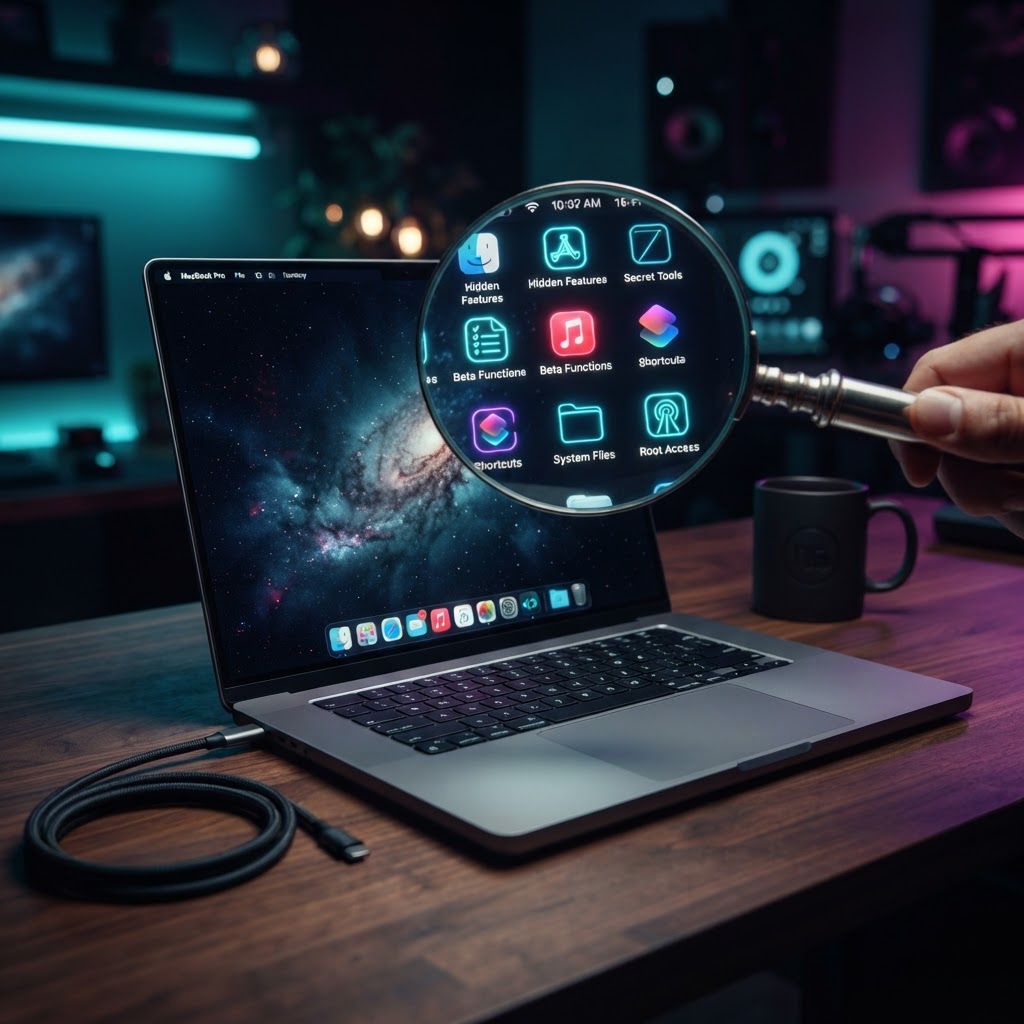
15 Hidden macOS Features That Feel Like Secret Superpowers
Your Mac has been quietly holding out on you. Spotlight math, a built-in screen recorder, text replacement anywhere, folder path copy, and 11 more hidden tricks that make you wonder how you ever lived without them.
Your Mac Is Hiding Its Best Features
Apple ships powerful tools in every Mac — then buries them in menus nobody opens and shortcuts nobody mentions. The result: millions of users doing things the slow way while a faster path sits one keystroke away.
These are the 15 hidden features that change daily use the most. No downloads, no Terminal required — everything here is already on your Mac, right now.
Spotlight Is a Calculator, Converter, and Launcher in One
1. Instant Math and Unit Conversion
Click the magnifying glass (⌘ + Space) and just type:
235 * 12 + 480
The answer appears before you finish typing. No calculator app needed. It also converts anything:
250 USD to EUR
10 miles in km
Currency, weight, length, volume, temperature, timezone conversions — all live in the search box most people only use to open Safari.
2. Spotlight Does Natural Language File Search
documents from last week
Type that into Spotlight and it filters your actual recent files. Also try "presentations from yesterday" or "photos from march". It's the file-finder people assume they need a third-party app for.
Screenshot Tricks Beyond ⌘ + Shift + 4
3. Screen Recording — Built In and Forgotten
⌘ + Shift + 5 opens the full screenshot toolbar — including entire screen recording with a record button. No QuickTime digging, no third-party app.
To record a portion of the screen: press ⌘ + Shift + 5, drag the selection, hit Record. It's the feature people buy screen recorders to get.
4. Add a Timer Delay to Screenshots
Need to capture a menu state that only exists while you hold a click? The same ⌘ + Shift + 5 toolbar has Options → Timer, with 5- and 10-second delays.
5. Screenshot to Clipboard Instead of Desktop
Tired of cluttering your desktop with screenshot files? Hold Control with any screenshot shortcut and the image lands on your clipboard, ready to paste directly into a message or document:
⌘ + Shift + Control + 4
Text Power Moves
6. Look Up Any Word From Anywhere
Hover over any word in any app and force-click (or three-finger tap on trackpads) for an instant dictionary definition, thesaurus entry, and Wikipedia summary. Works in Safari, Notes, PDFs, everywhere.
7. Text Replacement — Snippets Anywhere in macOS
Open System Settings → Keyboard → Text Replacements and create shortcuts:
| Shortcut | Expands to |
|---|---|
@@ | your@email.com |
addr | Your full mailing address |
sig | Your standard sign-off |
These sync across Mac, iPhone, and iPad and expand in every app. Type @@ and your email appears — the most underrated typing upgrade on macOS.
8. Emoji Picker With Zero Mouse Movement
⌘ + Control + Space
A full emoji search-and-insert panel opens wherever you're typing. Search by name ("fire", "check") and press Return. It also holds symbols like ©, ™, and arrows.
9. Smart Quotes and Dashes
Typing -- should not produce two hyphens. macOS converts -- into a proper em-dash (—) and straight quotes into typographic quotes automatically. Control the behavior under Keyboard → Input Sources → Edit.
Finder and Window Management
10. Copy a File's Path in One Shortcut
Right-click a file while holding Option (⌥) and the "Copy" menu item becomes "Copy as Pathname" — the full path lands on your clipboard, ready to paste into terminals, emails, and upload dialogs.
11. The Window Switcher Nobody Uses
⌘ + Tab cycles apps, but ⌘ + ` cycles windows of the current app — the shortcut for anyone who works with multiple documents or multiple browser windows open. Most ten-year Mac users have never pressed it.
12. Move Windows Between Spaces Without Mission Control
While dragging a window, press ⌃ + → or ⌃ + ← and the window jumps to the adjacent desktop space with you — no Mission Control, no swipe gestures.
Power User Gold
13. Hot Corners — Screen Actions on Mouse Arrival
System Settings → Desktop & Dock → Hot Corners. Assign actions to screen corners:
- Bottom-right → put display to sleep
- Top-left → open Notification Center
- Top-right → lock screen
Slide your mouse to a corner and the action fires. Bottom-right for instant screen sleep is the classic — one flick and your Mac locks, no keyboard needed.
14. Quick Look Does More Than Preview
Select any file and press Space — Quick Look opens it instantly. But the hidden part:
- Full-screen preview: Option + Space
- Multiple files: select several, press Space, then use ⌘ + Return for a full-screen gallery view
- Pin it: hold Option when clicking to keep the preview open while you browse other files
It previews PDFs, video, RAW photos, zip archives (shows contents), and even code files with syntax coloring.
15. The Option Key Is a Secret "Reveal Everything" Switch
Hold Option and click menu bar icons for hidden panels:
- Wi-Fi icon + Option → full network diagnostics (IP, channel, BSSID, Tx rate)
- Volume icon + Option → jump straight to full input/output device settings
- Battery icon + Option → battery condition and cycle count details
The rule of macOS: whenever a setting seems missing, hold Option and look again. Apple hides its most technical options behind this single key, and now you know the pattern.
The Pattern Behind All 15
| Feature | The Unlock |
|---|---|
| Math & conversions | Spotlight (⌘ + Space) |
| Screen recording | ⌘ + Shift + 5 |
| Clipboard screenshots | Add Control to any shortcut |
| Dictionary anywhere | Force-click or three-finger tap |
| Text snippets | Keyboard → Text Replacements |
| Emoji anywhere | ⌘ + ⌃ + Space |
| Copy file path | Option + right-click |
| Cycle windows | ⌘ + ` |
| Corner actions | Desktop & Dock → Hot Corners |
| Hidden menus everywhere | Hold Option |
None of these required an app, a download, or a single Terminal command. Apple built them all in — it just never advertised the manual.
Pick three of these that fit your workflow, use them for a week, and your Mac starts feeling less like an appliance and more like the tool it was designed to be.
And if you're curious what life looks like on the other side of the OS fence — I wiped Windows off my machine and went full Linux for 30 days. The results surprised me.
Derrk Samuel
Web3, crypto, and Linux PC insights — practical guides, security tips, mining setups, blockchain tools, and decentralized tech strategies for techs.
Related Articles

MajorGeeks.com: A Powerful, Trusted & No-Nonsense Software Hub (2026 Guide)

How Copilot and AI Are Transforming Business — And What It Means for Everyday Users
How to Prompt an AI Agent to Extract and Format Code Commands From Blog Posts
Discussion
Leave a comment
No comments yet. Be the first to start the discussion!