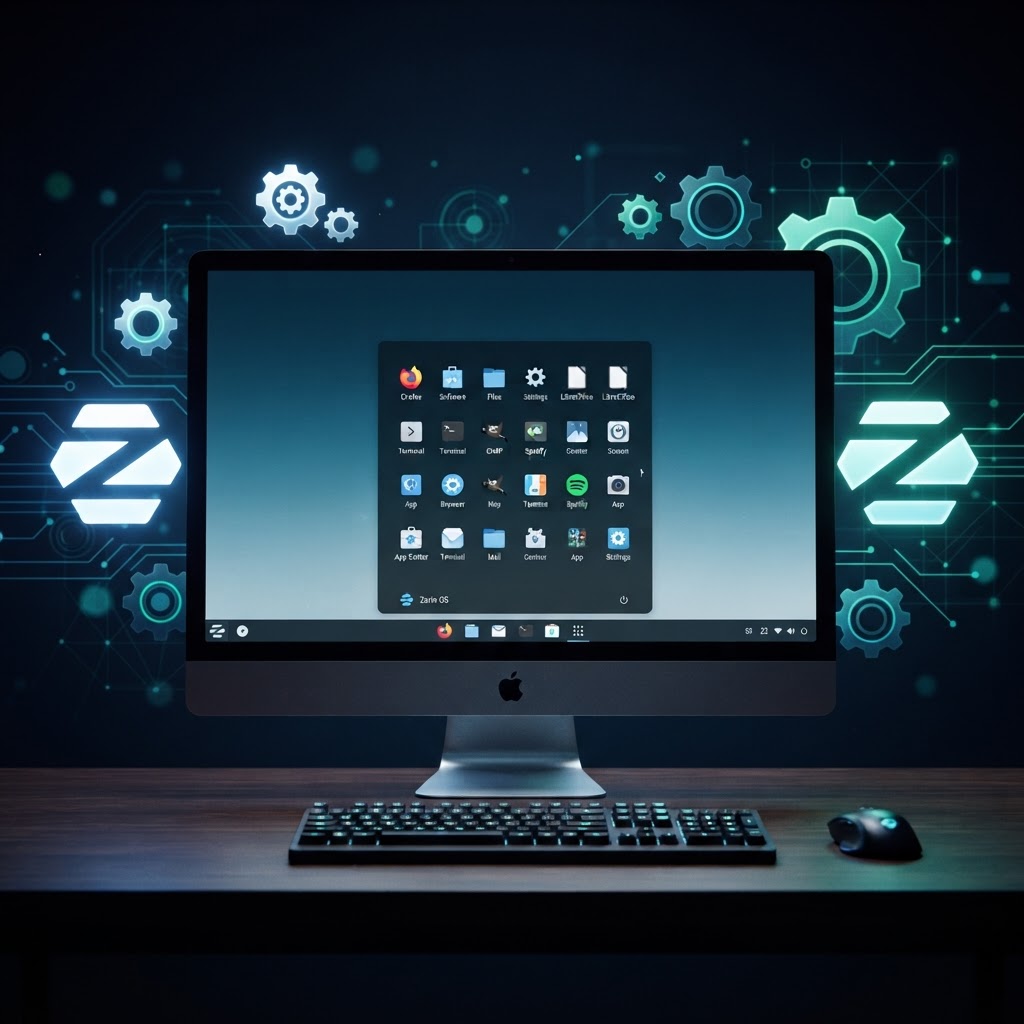
Zorin OS — The Complete Guide to the Linux Distro That Looks Like Windows (2026)
Zorin OS is the friendliest Linux for people switching from Windows or macOS. This complete guide covers every edition, the installer, the Zorin Appearance tool, software installation, gaming, and the tips and tricks that make you productive fast.
What Is Zorin OS?
Zorin OS is a beginner-friendly Linux distribution based on Ubuntu and built to feel instantly familiar to anyone coming from Windows or macOS. Its whole pitch is simple: you shouldn't have to relearn how to use a computer just to switch operating systems.
Out of the box, Zorin ships with a taskbar, a Start-menu-style launcher, familiar window controls, and a polished desktop that closely mimics Windows 10/11 or macOS — selectable from a single toggle. Underneath, it's a fully standard Ubuntu LTS system, so every Ubuntu tutorial, package, and PPA works without modification.
Zorin OS is developed by an independent company (Zorin Group) based in Ireland. It comes in four editions:
| Edition | Price | Best for |
|---|---|---|
| Zorin OS Core | Free | Most users — full desktop, no telemetry |
| Zorin OS Lite | Free | Reviving old / low-spec hardware (32-bit & 64-bit) |
| Zorin OS Pro | ~$39 (one-time) | Power users — extra layouts, advanced tweak tool, support |
| Zorin OS Education | Free | Schools and students — bundled learning apps |
Why Choose Zorin OS? Core Benefits
1. A Desktop You Already Know
The signature feature is the Zorin Appearance tool. Instead of forcing you to learn GNOME or KDE conventions, Zorin lets you pick a layout:
- Windows — taskbar at the bottom, Start button on the left
- Windows Classic — taskbar bottom, Start on the left, smaller icons
- macOS — dock at the bottom, top menu bar
- ChromeOS — panel-style launcher at the bottom
- Ubuntu / GNOME — activity overview with a dock on the left
Switch layouts in seconds. No extensions, no config files, no terminal. This single feature is why so many people finally make the jump from Windows.
“Switch layouts in seconds. No extensions, no config files, no terminal. This single feature is why so many people finally make the jump from Windows.”
Share on X2. Built on Ubuntu LTS — Rock Solid
Zorin OS tracks Ubuntu Long-Term Support releases, meaning you get 5+ years of security updates and a massive software library. Anything that runs on Ubuntu runs on Zorin: apt, Snap, Flatpak, PPAs, and Docker all work natively.
3. Fast on Old Hardware
Zorin OS Lite uses the lightweight Xfce desktop and is optimized to run on machines up to 15 years old. It even ships a 32-bit ISO — rare in 2026 — so aging netbooks and Atom laptops stay useful.
4. No Telemetry, No Ads
Zorin does not track you, serve ads, or push "recommended" apps into your start menu. The free edition is genuinely free, and the Pro edition is a one-time purchase — no subscription, no account required.
5. Zorin Connect — Your Phone on the Desktop
Zorin ships with Zorin Connect (a KDE Connect fork) preinstalled. Pair your Android phone over Wi-Fi and you get:
- Phone notifications mirrored to your desktop
- Reply to SMS from your keyboard
- Use your phone as a wireless trackpad / presentation remote
- Drag and drop files between phone and PC
- Battery and ringtone controls from the taskbar
Installing Zorin OS — Step by Step
Step 1 — Download the ISO
Grab the ISO from zorin.com. Core and Lite are free; Pro requires a purchase link.
Verify the download (optional but recommended):
sha256sum zorin-os-17.2-core-64bit.iso
Compare the hash to the one published on the Zorin download page.
Step 2 — Flash a Bootable USB
Use BalenaEtcher (cross-platform GUI) or dd on Linux:
# Find your USB drive
lsblk
# Flash the ISO (replace /dev/sdX with your USB device)
sudo dd if=zorin-os-17.2-core-64bit.iso of=/dev/sdX bs=4M status=progress conv=fsyncoflag=direct
⚠️ Double-check the device letter.
ddwill erase everything on the target drive with no confirmation prompt.
“⚠️ Double-check the device letter. dd will erase everything on the target drive with no confirmation prompt.”
Share on XStep 3 — Boot and Install
- Boot from the USB (tap your boot key — F12, F2, Esc, or Option on Mac).
- Choose "Try Zorin OS" to test it live, or "Install Zorin OS" to install directly.
- The installer is a standard Calamares wizard:
- Choose language and keyboard
- Select Erase disk (for a clean install) or Install alongside (to dual-boot with Windows)
- Set timezone, create a user account
- Click Install — it takes about 10–15 minutes
Step 4 — Dual-Booting with Windows
If you keep Windows alongside Zorin, the installer detects it automatically and adds a GRUB boot menu entry. On boot you'll see:
Zorin OS
Windows Boot Manager
Tip: Shrink your Windows partition from inside Disk Management before installing Zorin, leaving at least 30 GB of unallocated space for the installer to use.
“Tip: Shrink your Windows partition from inside Disk Management before installing Zorin, leaving at least 30 GB of unallocated space for the installer to use.”
Share on XThe Zorin Appearance Tool
This is the heart of Zorin OS. Open it from the app menu (search "Appearance") and you get four tabs:
Desktop Layout
Pick your look: Windows, Windows Classic, macOS, ChromeOS, or Ubuntu. The change is instant — no logout required. Pro adds tablet and touch-optimized layouts.
Theme
Light, Dark, or Auto (follows time of day). Accent colors are fully customizable — choose from presets or set a custom hex value.
Desktop
Toggle icons on the desktop, the home folder, mounted volumes, and the trash. Adjust icon size and grid spacing.
Panel
Move the taskbar to the top, bottom, left, or right. Toggle the window list, show desktop button, and system tray. Pro unlocks multi-monitor panel configuration.
Installing Software on Zorin OS
Zorin gives you four ways to install apps — all of them work side by side.
1. Zorin Software Store (Recommended for Beginners)
A clean GUI store with curated, verified apps. It pulls from both Flatpak and the Ubuntu archive, so you get a single search box for everything.
Open: Start Menu → Software
Search: "Spotify", "Discord", "VLC"...
Click: Install
2. The Software Boutique
Zorin's own curated storefront — a small grid of hand-picked essential apps (browsers, media players, productivity). It's the fastest way to set up a fresh install without hunting through thousands of packages.
3. APT (Command Line)
Standard Ubuntu package manager:
sudo apt update
sudo apt install vlc gimp inkscape
Remove an app:
sudo apt remove --purge vlc
4. Flatpak and Snap
Both are preinstalled. Flatpaks are preferred on Zorin for sandboxed desktop apps:
# Add Flathub if not already enabled
flatpak remote-add --if-not-exists flathub https://flathub.org/repo/flathub.flatpakrepo
# Install an app
flatpak install flathub com.spotify.Client
Run a Flatpak:
flatpak run com.spotify.Client
Installing Windows Apps with Zorin's Compatibility Layer
Zorin OS Pro ships with a built-in Windows App Compatibility layer powered by Wine + Bottles. This lets you run many .exe and .msi installers directly — no terminal, no manual Wine prefix setup.
Start Menu → Windows Apps → Install a Windows app
Browse to: setup.exe
Click: Run
For free Core users, you can replicate this manually:
sudo apt install wine
wine setup.exe
For the best results, prefer native Linux versions of apps first (LibreOffice, GIMP, OBS Studio). Use Wine only for Windows-only software that has no Linux equivalent.
“For the best results, prefer native Linux versions of apps first (LibreOffice, GIMP, OBS Studio). Use Wine only for Windows-only software that has no Linux equivalent.”
Share on XGaming on Zorin OS
Because Zorin is Ubuntu under the hood, Steam and Proton work out of the box — including Steam Play for Windows games.
Install Steam
sudo apt install steam-installer
Or via Flatpak for a sandboxed install:
flatpak install flathub com.valvesoftware.Steam
Enable Proton for Windows Games
- Open Steam → Settings → Compatibility
- Check "Enable Steam Play for all other titles"
- Pick a Proton version (Proton Experimental is a good default)
- Restart Steam — your Windows library will show Install buttons
Drivers
For NVIDIA GPUs, Zorin's installer auto-detects and offers the proprietary driver. If you skipped it:
sudo ubuntu-drivers autoinstall
sudo reboot
For AMD and Intel, drivers are already in the kernel — no extra steps needed.
System Updates and Maintenance
Update Everything
sudo apt update && sudo apt upgrade -y
Remove leftover dependencies:
sudo apt autoremove --purge -y
Enable Automatic Security Updates
Zorin enables unattended-upgrades by default for security patches. Verify:
cat /etc/apt/apt.conf.d/20auto-upgrades
You should see:
APT::Periodic::Update-Package-Lists "1";
APT::Periodic::Unattended-Upgrade "1";
Tips and Tricks
1. Pin Your Favorite Apps to the Taskbar
Right-click any app in the menu → Add to panel. Reorder by dragging.
2. Custom Keyboard Shortcuts
Settings → Keyboard → Shortcuts → Custom Shortcuts
Example — open a terminal anywhere with Super + T:
| Field | Value |
|---|---|
| Name | Terminal |
| Command | gnome-terminal |
| Shortcut | Super + T |
3. Take a Screenshot of a Region
Print Screen → Screenshot tool
Shift + Print → Select region to capture
Ctrl + Print → Copy to clipboard (no save)
4. Hide the Dock on a Small Screen
In Zorin Appearance → Panel, enable auto-hide. The taskbar slides out of view until you move the mouse to the edge — maximizes screen space on laptops.
5. Use Timeshift for System Backups
Zorin ships Timeshift preinstalled — the Linux equivalent of Windows System Restore.
Start Menu → Timeshift
Create snapshot → Done
Schedule weekly snapshots so a bad update or config mistake is one click to undo:
sudo timeshift --create --comments "weekly baseline" --tags D
6. Tweak the Look Further with GNOME Extensions
Zorin supports standard GNOME extensions. Install the Extensions Manager:
sudo apt install gnome-shell-extension-manager
Browse extensions.gnome.org for Blur my Shell, Dash to Panel, AppIndicator, and hundreds more.
Zorin OS vs Other Distros
| Feature | Zorin OS | Ubuntu | Linux Mint | Pop!_OS |
|---|---|---|---|---|
| Base | Ubuntu LTS | Independent | Ubuntu LTS | Ubuntu LTS |
| Desktop | Modified GNOME | GNOME (custom) | Cinnamon | Modified GNOME |
| Windows-like default | Yes (toggle) | No | Yes | No |
| Built-in layout switcher | Yes | No | No | No |
| Windows app support | Pro built-in | Manual (Wine) | Manual (Wine) | Manual (Wine) |
| Target user | Switchers | Everyone | Switchers | Gamers/devs |
| Telemetry | None | Minimal | None | None |
Common First-Week Questions
"Where is my C: drive?"
Your Windows drive mounts automatically under /media/yourusername/. Open the file manager → Other Locations → your Windows partition. If it's BitLocker-encrypted, you'll be prompted for the recovery key.
"How do I install .deb files?"
Double-click any app.deb file and the Software Store handles it. From the terminal:
sudo apt install ./downloads/app.deb
"My Wi-Fi doesn't connect after install"
Some Broadcom chips need a driver. Plug in Ethernet (or tether your phone), then:
sudo apt update
sudo apt install broadcom-sta-dkms
sudo modprobe wl
"Can I upgrade between Zorin versions?"
Yes — Zorin releases an in-place upgrader for each major version. When 18 ships, you'll get a desktop notification with a one-click upgrade path; your files and apps stay intact.
Final Thoughts
Zorin OS is the most frictionless on-ramp to Linux in 2026. It doesn't ask you to relearn anything — it hands you a desktop that looks like the one you're leaving, runs the full Ubuntu software library, stays light on old hardware, and respects your privacy by default.
If you've been curious about Linux but never wanted to fight with it, Zorin OS is the distro that finally makes the switch feel like an upgrade.
Derrk Samuel
Web3, crypto, and Linux PC insights — practical guides, security tips, mining setups, blockchain tools, and decentralized tech strategies for techs.
Related Articles


Discussion
Leave a comment
No comments yet. Be the first to start the discussion!